2011年10月31日星期一

How to Convert DVD and Video to Any Video Format You Want Freely

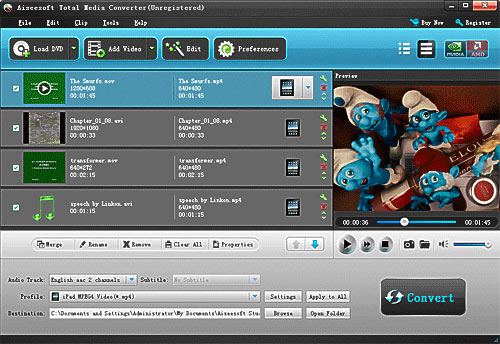
Convert DVD and video is really easy for most of people now. You just need a DVD converter and a video converter. Use dvd converter to convert your DVD and use video converter to convert video. Do you want only one converter that can help you to convert both DVD and video in one interface with few clicks and high output quality. Today I will introduce you a Total Media Converter that convert both DVD and video.

You need to download and install it first before you can use it.

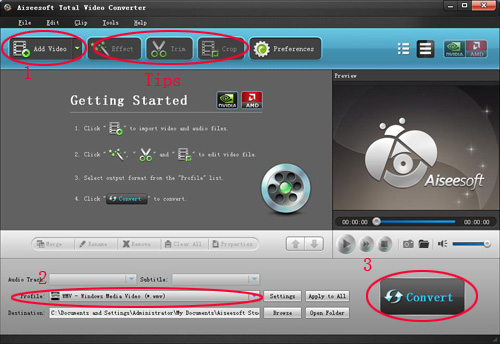
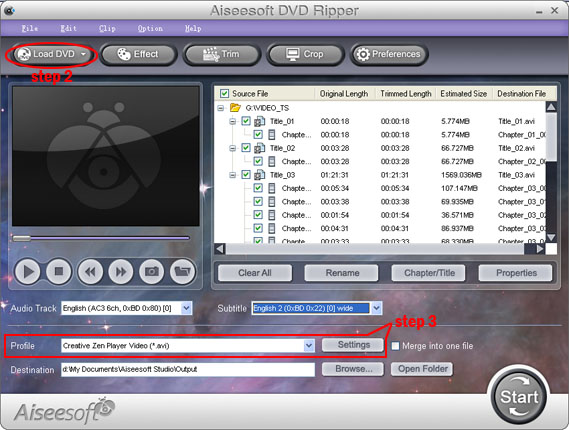
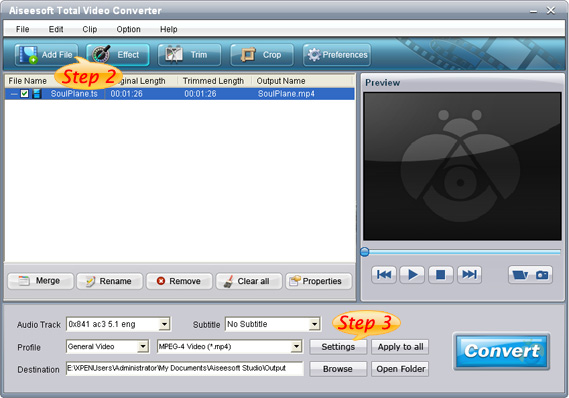
Step 1: Load DVD/Video
Click “Add File” to load Videos from your computer
Click “Load DVD” to load your DVD from your DVD Drive

Step 2: Choose Output Info
a. Convert video:
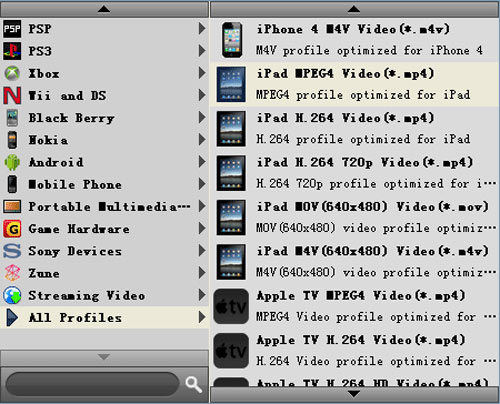
Choose output profile first in the drop-down list and then click “settings” button to adjust the specific settings, such as “resolution”, “encoder”, “bit rate”, “frame rate” and some audio settings such as “audio encoder”, “sample rate” and so on. You can save your profile and settings and give it a name, so you can use it next time easily.

b. Convert DVD
Choose output profile first and then you need to choose your output audio track and subtitle, if you do not want them you can leave them blank. Also like convert video you can adjust the specific output settings, such as “resolution”, “bit rate” and so on.
Save the profile and settings for next use is also available.

Step 3: Conversion
Click “Convert” button to start your conversion. You will get your output video soon.

Tips:

1. Adjust the output effect
You are allowed to adjust the “Brightness”, “Contrast” and “Saturation” of the output video. “Deinterlacing” is also available to improve the quality of the output video. You can choose “apply to all” to save your time.

2. Pick up a part to convert
If you do not want to convert the whole video or DVD you can just pick up the part that you want to convert using “Trim” function.
You can do it in 3 ways:
a: Enter the start time in the Start Time box and click OK, then enter the end time in the Set End Time box and click OK.
b: Drag the scissors bars under the preview window when you want to trim, then the time will be shown in the Start Time box and End Time box for your reference.
c: While playing video, click “Trim From” button where you want to begin your trimming and click “Trim To” button where you want to stop your trimming.

3. Crop the output video
This powerful video converter allows you to crop the video play area. You can choose a certain play area to convert, and do snapshot.
You can crop your output video in 2 ways:
a: Crop by adjusting the crop frame
The crop frame is the yellow line around the movie video. There are eight small adjustment boxes on the crop frame. Each adjustment box allows you to crop the movie video from a different position. To crop your movie video, you can just move your mouse cursor to an adjustment box and drag the crop frame.
b: Crop by setting the crop values
There are four crop values on the buttom of the window: Left, Top, Right, Bottom. You can set each value to crop your movie video, and the crop frame will move accordingly.

You can also set the output aspect ratio from the Zoom Mode according to your need. There are four choices available: Keep Original, Full Screen, 16:9 and 4:3.

4. Add watermark to the output video
You can add text and picture watermark to your output video easily with Aiseesoft Total Media Converter.
Check the “Enable Watermark” box and choose “Text” or “Picture” as you want.
You can drag the watermark to find the place you want to put and also you can adjust the Font info of the words you from “T” button.

2011年10月30日星期日

Newly Upgraded MTS Converter Converts MTS/HD TS to All Popular Formats

What is MTS format? MTS format is a high-definition MPEG, AVC, H.264 transport stream video file format which is commonly used by HD camcorders such as Sony, Canon, and Panasonic. In modern society people like to use DV players to record what is happening in certain or memorable moments like a birthday party and wedding ceremony etc. The shot DV videos are in high-definition MTS format which is not a very common video format compared with AVI, FLV, MP4 and so on. There is no other solution if you want to share MTS videos with your family and friends except for converting MTS files to the popular formats so that you can enjoy them on iPad, iPhone, iPod, Zune, Archos, PSP, Blackberry and Android devices, etc. Aiseesoft MTS Converter has been upgraded for users to convert MTS to any popular video formats easily and conveniently.

Aiseesoft MTS Converter possesses powerful functions to convert M2TS, TS, and MTS files to almost all the popular video formats including AVI, WMV, MP4, 3GP, 3G2, MOV, FLV, MKV, SWF, MPG, etc. at a dramatically fast speed and high image/sound qualities. With this MTS Converter, you can convert one video to different formats at one time. Also, extracting audio from MTS files is allowed.

This updated MTS converter provides users with editing functions to customize the output files according to their preference. For instance, by using the MTS converter, you can trim your needed segment of the MTS file, crop the video frame to suit your players, and merge several video clips into one, and modify Brightness, Contrast, Saturation, Hue and Volume etc. After the conversion, you can enjoy MTS files on your portable devices comfortably and conveniently. Besides, the newly adopted NVIDIA® CUDA™ and AMD APP acceleration technology make it possible to convert MTS files in the fastest speed.

Price and Availability

MTS Converter is now priced at $35.00

System Requirements

OS Supported: Windows NT4/2000/2003/XP and Windows Vista, Windows 7Hardware Requirements: 800MHz Intel or AMD CPU, or above; 512MB RAM or more

2011年10月28日星期五

Nokia Releases its First Windows Phones – Lumia 710 and 800

On Wednesday, Nokia CEO Stephen Elop showed off the first Windows phones Wednesday: the Lumia 800 and the Lumia 710 on Nokia World, the Finnish phone maker’s annual analyst and press event. The two phones are the first fruits of the partnership between Nokia and Microsoft.

In February, Nokia announced that it would abandon Symbian (and, later, its other mobile platform efforts, such as MeeGo) in favor of Microsoft’s nascent Windows Phone platform. It was a stunning move.

Now, six months after the Nokia-Microsoft marriage became public, we’re about to see the fruit of this ambitious project.

And this marks a milestone in the collaboration between the two companies that will see Nokia shift away from its Symbian operating system.

The high-end Lumia 800, available in black, cyan and magenta, features a 3.7-inch 800×480 AMOLED screen and a 1.4 GHz Snapdragon processor, along with 16 GB of storage and an 8-megapixel camera. The Lumia 710 offers the same 3.7-inch screen and 1.4 GHz processor found in the Lumia 800, but contains only 8 GB of storage and a 5-megapixel camera. The device is available in black and white, with changeable back covers available in an assortment of colors. Both handsets run the latest Windows Phone 7.5 Mango operating system.

The estimated retail price for the Nokia Lumia 800 will be approximately EUR 420, excluding taxes and subsidies. And the Nokia Lumia 710 will be sold at the price of EUR 270. Both devices are being sold in six European countries and will be sold later this year in parts of Asia. Other smartphones are planned for the United States, but not until early next year.

Analysts said the Nokia smartphones could also help Microsoft extend its dominant computer software business into the cellphone and mobile device market.

Nokia was paying $15 to Microsoft for each Windows smartphone it produced, less than the estimated $20 other handset makers must pay. The new Windows phone lineup has the potential to help restore Nokia’s fortunes in the smartphone market.

dvd ripper for mac, backup iphone sms

On Wednesday, Nokia CEO Stephen Elop showed off the first Windows phones Wednesday: the Lumia 800 and the Lumia 710 on Nokia World, the Finnish phone

On Wednesday, Nokia CEO Stephen Elop showed off the first Windows phones Wednesday: the Lumia 800 and the Lumia 710 on Nokia World, the Finnish phone maker’s annual analyst and press event. The two phones are the first fruits of the partnership between Nokia and Microsoft.

In February, Nokia announced that it would abandon Symbian (and, later, its other mobile platform efforts, such as MeeGo) in favor of Microsoft’s nascent Windows Phone platform. It was a stunning move.

Now, six months after the Nokia-Microsoft marriage became public, we’re about to see the fruit of this ambitious project.

And this marks a milestone in the collaboration between the two companies that will see Nokia shift away from its Symbian operating system.

The high-end Lumia 800, available in black, cyan and magenta, features a 3.7-inch 800×480 AMOLED screen and a 1.4 GHz Snapdragon processor, along with 16 GB of storage and an 8-megapixel camera. The Lumia 710 offers the same 3.7-inch screen and 1.4 GHz processor found in the Lumia 800, but contains only 8 GB of storage and a 5-megapixel camera. The device is available in black and white, with changeable back covers available in an assortment of colors. Both handsets run the latest Windows Phone 7.5 Mango operating system.

The estimated retail price for the Nokia Lumia 800 will be approximately EUR 420, excluding taxes and subsidies. And the Nokia Lumia 710 will be sold at the price of EUR 270. Both devices are being sold in six European countries and will be sold later this year in parts of Asia. Other smartphones are planned for the United States, but not until early next year.

Analysts said the Nokia smartphones could also help Microsoft extend its dominant computer software business into the cellphone and mobile device market.

Nokia was paying $15 to Microsoft for each Windows smartphone it produced, less than the estimated $20 other handset makers must pay. The new Windows phone lineup has the potential to help restore Nokia’s fortunes in the smartphone market.

ipod to mac transfer, iphone to mac transfer, ipad to mac transfer

2011年10月27日星期四

How to Convert MPEG to iPad with MPEG to iPad Converter?

Aiseesoft MPEG to iPad Converter, the perfect iPad Video Converter, can help you convert MPEG to iPad fast and conveniently. Besides of MPEG, it also supports converting AVI to iPad, converting MOV to iPad… And we can guarantee you the best output quality. Also it is a perfect video editor to help you edit video. Now download this MPEG to iPad Converter and have a try.

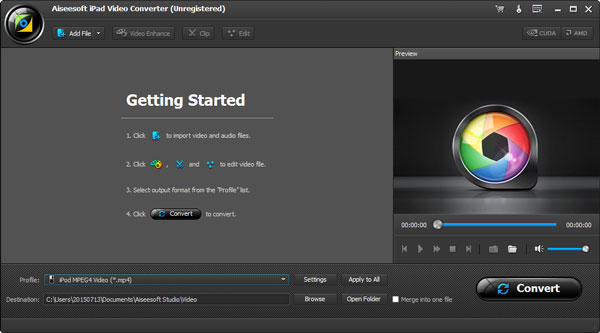
After downloading the Aiseesoft iPad Video Converter, double click the installation package to install. Then run the software.

Step 1: Add files before MPEG to iPad conversion

Click "File > Add File(s)" to load the files you want to convert.

Or click the "Add File" button to add the target MPEG file.
Step 2: Choose profile, destination and settings

Select your preferred audio track and subtitle for the output video. Then click the Profile drop-down button to choose the output format. Click "Browse" button to choose the destination file to place the output file.

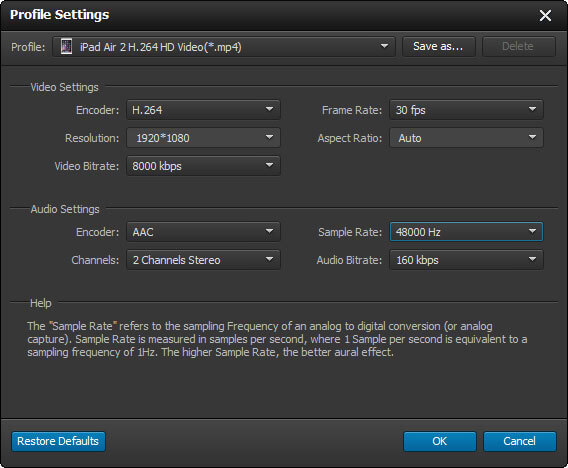
For further settings, you can click the "Settings" button. And you can adjust the video Encoder, frame rate, audio Channels and more parameters.

In order to get customized output video, this video editor allows you to edit video, such as cropping video. Press the "Crop" button on the main interface.

Click the "Effect" button and you can see this interface.

In this interface of the video editor above, you can set the play region by setting the edge distance or just adjusting borders of the yellow square in the original preview window. With this function, you can cut off the black edge and adjust the aspect ratio to fit your player.

Step 3: Start converting MPEG to iPad

After all these operations, the last work is to click the "Convert" button to start the MOV to iPad conversion. Also during the converting process, you are able to see the whole progress.

2011年10月26日星期三

Aiseesoft DVD Ripper for Mac - Helping Users Enjoy DVD Video on iPad 2

With the diversity of video formats, converting DVD to other formats has become an essential requirement of most multimedia users. Plus, since iPad 2 only supports MPEG-4, H.264/MPEG-4 AVC, MOV, M4V video formats and AAC, MP3, WAV, AIFF, M4A audio formats, it is impossible for iPad 2 users to play DVD movies on iPad 2. Now, the newly-updated best DVD Ripper for Mac will be their best choice to solve the problem.

Aiseesoft DVD Ripper for Mac is powerful software and very easy to use, which can rip DVD to popular video or audio such as MPEG-4, H.264/MPEG-4 AVC, MOV, M4V and AAC, MP3, WAV, AIFF, M4A to satisfy iPad 2. This best DVD Ripper for Mac also provides a wealth of conversion programs for the iPod, iPhone, PSP, Zune, Apple TV and other digital devices, so that you can easily convert DVD to formats which these devices support.

The best DVD Ripper for Mac provides video editing functions which make your conversion more flexible. With this best DVD Ripper for Mac, you can clip video segments, crop video size, edit video effects and add watermarks.

This Aiseesoft DVD Ripper for Mac deserves to be the best DVD Ripper software for Mac users:

1.
DVD video conversion
Rip DVD to AVI, MPEG, MPG, WMV, DivX, XviD, RM, MOV, FLV, 3GP, 3GP2, MP4, HD MP4, TS video formats.

2.
DVD audio extraction
The best DVD Ripper for Mac can extract DVD audio and convert it into various audio formats such as MP3, WAV, WMA, AAC, AC3, AAC, AIFF, AMR, AU, FLAC, MP2, OGG audio formats.

3.
Capture video image
With this best DVD Ripper for Mac, you can use any DVD video clips in a fixed time to crawl down the screen.

4.
Edit video effects
This DVD Ripper for Mac provides a powerful video editing function which allows you to crop video, adjust video subtitle, edit video effects, add video watermark.
5.
Merge files into one
This Mac DVD ripper allows you to put two or more files you choose into one output file.

Overall, the best DVD Ripper can meet the needs of you, so that you can get a perfect experience.

System Requirements

Processor: Power PC ® G4/G5 or Intel ® Processor

Os Supported: Mac OS X v10.4 – 10.6

Hardware Requirements: 521MB RAM, Super VGA (800 x 600) resolution, 16 – bit graphics card or higher

Pricing and Availability

Aiseesoft DVD Ripper for Mac is available now at $35.00.

About Aiseesoft Studio

As a professional multimedia software provider, Aiseesoft Studio is dedicated to developing the best multimedia desktop applications to help Windows and Mac users smoothly convert, edit and transfer various video/audio files. In order to meet users' various requirements, Aiseesoft Studio constantly brings in new ideas, technologies, etc. To Aiseesoft Studio, user satisfaction is a consistent pursuit.

2011年10月25日星期二

Aiseesoft Releases iPhone 4S Movie Converter: Enjoy Your Latest Apple Technology!

In order to help Apple fans better enjoy iPhone 4S, Aiseesoft's newly released iPhone 4S Movie Converter, a multi-functional and user-friendly iPhone 4S video converter to give iPhone 4S users wonderful user experience.

Aiseesoft iPhone 4S Movie Converter has defined profiles for iPhone 4S's 1080p HD video recording feature, including iPhone 4S MPEG4 Video, iPhone 4S H.264 Video, iPhone 4S H.264 HD Video, iPhone 4S MOV (640*480) and iPhone 4S M4V Video. Through owning this iPhone 4S MP4 converter tool, users can easily convert 1080p HD video clips to various video or audio formats at random, such as MP4, M4V, AAC, AIFF, M4A, MP3, WAV, etc. Also, users can convert iPhone 4S 1080p video to many other mainstream video format to share with other friends on the internet or other video players, even iPad, iPod touch 4, etc.

What's more, depending on the proper graphics card, users can choose corresponding converting acceleration technology from AMD APP and NVIDIA® CUDA™ GPU Processing acceleration technology to get faster converting speed and superior output quality.

Key features of Aiseesoft iPhone 4S Movie Converter:

  1. Convert any video to iPhone 4S MPEG4, H.264, MOV, AVI, M4V and so on;
  2. Edit any source file to create customized video or audio files;
  3. Preview and take snapshot images from any loaded video files;
  4. Ultra-high converting speed and superior output quality.

In a word, this iPhone 4S video converter is easy-to-use and versatile. With it, iPhone 4S users can enjoy a more amazing iPhone without any confusion and trouble.

System Requirements

OS Supported: Windows NT4/2000/2003/XP and Windows Vista, Windows 7

Hardware Requirements: 800MHz Intel or AMD CPU, or above; 512MB RAM or more

2011年10月24日星期一

How to Convert Video Files on Mac/Windows

Nowadays, people can enjoy videos in different ways, such as youtube.com and other online video websites, iPod/Zune and other portable players, and also play video on computer, and you can also make you own videos with windows movie make or iMovie for Mac users. So how to convert videos between different video formats is a big problem for both windows and Mac users. Today I will share you guys two powerful video converter for Mac and Windows users.

For Mac users, this powerful video converter for mac is really nice.
Let's use it to convert a video for Example


Step 1: Add File
Click “Add File” button to load the video you want to converter

Step 2: Choose profile and adjust settings
You can find your output video format from a drop-list called “Profile”
You can also adjust the specific settings of the output video, such as “Resolution”, “Bitrate”, “Encoder” and so on.

Step 3: Edit Video
1. Effect:
You can adjust the “Brightness”, “Contrast”, “Saturation” and “Volume”

2. Trim:
You are allowed to pick up any part of the video to convert.

3. Crop:
To remove the black edges and choose a play area to convert.

Step 4: Start Conversion
Click “Start” button to begin your conversion and you will get your video soon.

For Windows users, you need Total Video Converter.


Step 1: Load Video
You can load your videos into the converter by clicking “Add File”

Step 2: Choose output info
This converter provides you many output profiles for you to choose, you can choose your output profiles according to your need. And also you can just choose a certain video format.

You can also adjust the settings of your output profiles. You can even save a certain settings as your own output settings.

Step 3: Conversion
Click “Start” button to begin your conversion and few mins later you can get your video.

Tips: How to effect, trim and crop the video to improve your output video quality.
After your Load your video you can click “Effect” button to access the effect panel

1: Effect
Adjust the video effect as you want: Brightness, Contrast, Saturation and Deinterlacing.

2: Trim
Clip your video, pick up any part of your video to convert.
You have 3 ways to do trim:

1.Dragging the slider

2.Controlling the “Trim From” and “Trim To” button

3.Setting the Start and End time

3: Crop
Adjust video size, Cut off the black edge of your video to let you enjoy your movie in full screen by click the 'Crop' button
You have 2 ways to do crop:

1.Move your mouse cursor onto one of the eight small adjustment boxes on the cropping frame and drag the crop frame to crop the video such as cutting off top and bottom black bar. The cropped result will be shown on the Output Preview at the same time

2.Type the value directly or set the value in "Left", "Right" and "Cropped area size" area to set the position of the cropping frame.

You can also select the aspect ratio from the Zoom Mode drop-down list. There are 4 choices for you: Full Screen, 16:9, 4:3 and Keep Original.

2011年10月23日星期日

Full Guide: How to Convert DVD to MP4, AVI, 3GP, iPod ......

DVD is the first choice for many people when they want to watch movies at home. It has high quality picture, different subtitles and audio tracks and most important, some of the DVD movies are more enjoyable than than the cinema one.
However, when we travel, when the disc is broken, when we want to backup the DVD movies, when we want to share the movies with friends, when we want to make usage of the movie, what should we do?
Convert DVD to video video formats you need.

This guide aims to show you how to convert DVD to different video format both for windows/mac users.

Part 1: How to Convert DVD on Windows with DVD Ripper


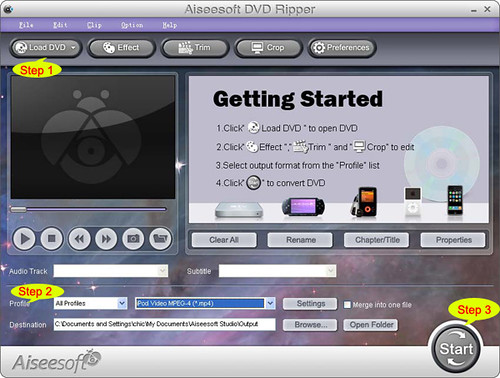
Step 1: Load DVD
Put your DVD to your DVD Drive and click “Load DVD” button to add your DVD
Step 2: Choose Profile
Choose your output video profile from a drop-down list.
Step 3: Start Conversion

Part 2: How to Convert DVD on Mac with DVD Ripper for Mac


Step 1: Load DVD
Click the “Load DVD” button, find the DVD folder of the movie you want to add from your DVD-ROM, and Click “Open”.
Step 2: Choose output profile and settings
Selecting output format is really easy, you can chose your output format according to your devices players and the default setting works great.
For a veteran of digital player, you could customize your own settings by clicking “Settings” button to chose your own video resolution, frame rate, bit rate, encoder, etc.
Step 3: Start Conversion

If you want to convert both DVD and videos, here is a really powerful DVD Converter Suite . It can help you to convert DVD and videos easily. It can also help you to backup the iPod music and videos to your computer.

2011年10月19日星期三

JP Morgan Expects iPhone 5 & iPhone 4-Plus in October

Now nearly all resources point that Apple will unveil the next iPhone a few weeks later. Yesterday, J.P. Morgan analyst Mark Moskowitz said that Apple might show us two new iPhone models.

The article, posted on Fortune, said that Apple is poised to release two new iPhone models, a slimmer model Apple will call the iPhone 5 and an improved version of the iPhone 4 called iPhone 4-plus. The analyst expects the iPhone 5 to be a “world phone” device with GSM and CDMA support, while the iPhone 4-plus will target the midrange of the market, as well as China.

“Our research indicates that there will be an iPhone 5 based on a lighter, thinner form factor that is GSM + CDMA capable, i.e., a ‘world-mode’ smartphone. A second device (4-plus) based on the current iPhone 4 but with some minor improvements could target the midrange and focus on China,” Moskowitz wrote. “As for the current iPhone 4, we expect it to subsume 3GS as the lower-end offering.”

Also yesterday, MacPost showed a photo of the partial iPhone 4S. The new photo also reveal the iPhone 4S battery to still be a 3.7 V, 5.3 Whr battery delivering 1430 mAh of charge, compared to the slightly lower-capacity 1420 mAh battery found in the iPhone 4.

Moskowitz also noted that he doesn’t expect another iPad refresh in 2011,saying Apple’s in “no rush” to replace its existing models based on lackluster competition.

2011年10月18日星期二

MTS Converter Products: Enjoy Any HD Video Freely

As we all know, MTS is a file extension for the high definition digital video camera recorder format, AVCHD (Advanced Video Codec High Definition). Therefore MTS files can only be played on some HD Camcorders, such as Sony, Canon or Panasonic. If you want to enjoy an MTS video on your ordinary player, what can you do? Aiseesoft Studio brings you the most efficient way - MTS Converter, the best MTS Converter for you to convert MTS and other HD video to any format you want.

Aiseesoft MTS Converter, a powerful Video Converter for MTS, is able to convert MTS to AVI, WMV, MP4, 3GP, 3G2, MOV, FLV, MKV, SWF, MPG, etc. In addition, this MTS Converter has powerful encoder and decoder technology, converting MPG, MPEG, VOB, DAT, MP4, M4V, WMV and other HD video to your needed formats. It is highly compatible with popular players such as iPod, iPhone, iPhone 3G, Apple TV, PSP, PS3, Wii, Mobile Phone, etc. As a versatile tool, Aiseesoft MTS Converter enables you to edit MTS files, such as set video Brightness, Contrast, Saturation, merge video clips, trim video length, crop video playing region, watermark video and so forth.

In order to bring you more convenience, this MTS Converter has adopted AMD APP and NVIDIA-CUDA GPU Processing acceleration technology to speed up the video converting process and support newly released DE, CUE and WebM files, as well as 5.1 channel audio!

Furthermore, MTS Converter for Mac is especially designed for Mac users to convert MTS video to different video or audio formats to perfectly meet your needs. This best Mac MTS Converter can convert MTS files to various devices, like iPod, iPhone, Apple TV, PSP, Zune, Xbox360, PS3, YouTube, Mobile Phone, etc. It also provides you with powerful video editing functions.

Price and Availability

Aiseesoft MTS Converter is now priced at $35.00

System Requirements

OS Supported: Windows NT4/2000/2003/XP and Windows Vista, Windows 7
Hardware Requirements: 800MHz Intel or AMD CPU, or above; 512MB RAM or more

2011年10月15日星期六

Top 10 Features in the New iOS 5

Apple will release the brand new iOS 5 for users to update soon for iPhone, iPad and iPod touch. For a lone time's waiting, Apple finally brings us the perfect iOS 5, the most advanced mobile operation system in the world, with notification center and other more than 200 upgrades.

Among the new features, some of them are already have on iPhone and iPad with 3rd party app. Now Apple brings them back to their own operation system. If you have ever used "WhatsApp", you will not feel strange when you are using iMessage. WhatsApp allows users to transfer info quickly, including words and multimedia stuff, and with no limitation on mobile platform. "iMessage" adds some new functions based on WhatsApp, such as store the conversation with iCloud. If your device has Instapaper, you have already experienced parts of the new version Safari's function. If you are using something like "Remember the Milk" as reminder, you will love the iOS 5's remind function badly.

Some other features may simple but really useful, such as you can take a picture with the volume-up button without unlock the screen. So many new features and now let us see the top 10 new features with iOS 5.

Top 1 Notification Center

I will give the top one new feature to Notification Center. Apple finally gives up the annoying pup-up window when you are playing game or having something important. The previous notice window like a box with no words, it is really annoying, especially at night, when you are playing games or just chating with friends, a notice window pop-up, have you ever imagine that you will throw your iPhone to the wall.

Now Apple brings us Notification Center to replace the unwelcome pop-up window. This one is like the "Mobile Notifier" app or something like that. The Notification Center not only shows user notice, but also the weather and app's real-time info. If you lock the screen, you can also use the drop-down notice without unlock the screen. When yo swipe the screen, you will see the summary of every notification.

Top 2 iMessage

Apple's iMessage is something like "BlackBerry Message". It runs on more than one devices with iOS 5. For example, you can first chat with your friends with your iPhone and then pick up your iPad to talk with them directly. In future, Mac OS Lion will have this feature also. With it you can see who is reading with delivery and read recipts. While, the difference with WhatsApp is that you can not run iMessage with uniOS devices. Maybe Apple thinks that it is not worth to talk to your friends that with Android and BlackBerry freely.

Top 3 New Camera and photo app

This version iOS has two simple but useful features that will meet all the users need. One is that you can access the camera app without unlocking the screen. You can just use grid lines and pinch-to-zoom gestures to get your shot just right. Focus with a tap. You will never pass a pictures that you want. The other is the you can just press the volume-up button to take photos without using the one on the screen. This will be the most welcome feature for the users who take photo often with iPhone.

The new camera app adds simple photo edit functions, you can easily edit your pictures with it, such as Crop, rotate, enhance, and remove red-eye. This will be really useful for the users who do not have "Camera Plus".

Top 4 Newsstand

There is a Newsstand on iOS 5, which is really like iBooks. But they have differences, such as the Newsstand is only for magzine and Journal. In fact, it is like someting the between iBooks and File folder.

Top 5 Twitter

In iOS 5, Apple brings Twitter into it everywhere. Such as post pictures to Twitter after you take your photo. IOS 5 allows you to share yous stuff on Twitter directly when you use YouTube, Safari and even Maps. And Apple adds a Twitter option under the contact list.

Top 6 New Safari

The new Safari adds several new features. When you are linking your iPad and iPhone, the webpage will be redesigned to adopt the difference between two screens, it will be more friendly for users when the page is without ads and redesigned.

The redesigned webpage will be added to the read list and saved , you can read it offline later. You can lso sync the page to different iOS 5 devices and Mac OS Lion devices and read them anytime and anywhere. It could be use the iCould.

The view page tab also be added to the new Safari, when you open a page, the tab will be listed under the address bar. It is really fast described by Apple official website. Hope it will sove the problems on lod Safari.

Top 7 Reminders

The new Reminders makes it easy to set out many things to do. Simple and clear, you can arange your day easily and also it can be sync with iOS 5 devices and Mac OS X devices. The most eyeball caught feature is that if you added "buy milk" to the to do list and you forgot it totally. Do worry, it will remind you when you are passing by a milk store or supermarket.

Top 8 Email System

Apple enhances the email system with much more text format. If your friend likes put all the words bold, that will be a dasister for you and you will not understand his point of view. So more text format can solve this problem easily.

The control of text indent. When you are quoting, you can control the indent yourself.

Top 9 No longer need PC's assistant

With iOS 5, your iPhone, iPod touch and iPad will no loner need the assistant from iTunes and PC. At this point, Apple finally catch up Android and Windows Phone 7. It is really convenient that when you open your new devices, a welcome interface will appear and you can update all your apps on iOS 5 with wifi.

Top 10 Game Center

Apple gives some improvment on Game Center and introducing some ideas from Xbox and other game platform, such as adding avatar, game discovery and supports Words for Friends and Scrabble and other game like that.

So all the Apple fans, updating your devices to iOS 5 as fast as you can and enjoy the over 200 new features brought from Apple.

iPad Transfer to you to backup your iPad music/video/pictures to computer.

DVD Ripper | Total Video Converter | iPad Converter

2011年10月14日星期五

Deep Analysis of Three Major Upgrades on iPhone 4S's Camera

It is a truth that iPhone 4S reveives most attention among this years' devices. Although, many upgrades on hardware are not satisfied by most of the Apple Fans, iPhone 4S's camera is really satisfied me. On one hand, the brand new 800 million pixels back-illuminated CMOS camear is 60% higher than the previous iPhone 4, on the other hand, it is worth to talk about the series attempts of iPhone 4S on taking photogragh. Today, I will talk about the Three major upgrades of iPhone 4S's camera.

How is the photo effect of iPhone 4S?

In 2011, 800 million pixels is not at the leading position. Apple upgrades iPhone 4S's camera to 800 million pixels just as its always negligence to camera. Tough the hardware is not that outstanding, we can see that the previous iPhone 4's photo effect is superior to other mobile phones. So I am really excitting to see the iPhone 4S's camera.

This time Apple gives iPhone 4S's camera three major upgrades: 800 million pixels, 1080p full HD video and faster response speed.

Nowadays, people is more and more reasonable on camera's pixels. People no longer think that the higher the pixel is, the better the camera is. That's right. Under the same sensor technology, the high pixel sometimes brings users more noise and longer save time. At the same time, people now are using twitter and mobile phone's screen is now 1280 * 720 most, too many pixel can not be seen on the screen.

From my pion of view, I think the 800 million pixel does mean something for iPhone 4S. Why? Because iOS is a kind of operating system that "depending on app". On the publish conference, Tim Coke, the CEO of Apple, talks about iCould more than once which connecting iOS and Mac OS closely. On the big screen of iMac 27, people can enjoy every corner of the photo from iPhone 4S's 800 million pixels camera. That is to say that app makes iPhone 4S having such high pixels.

Altough cellphone video share tech is not that common for people as cell phone's photo share today, with the development of 3G and 4G, it will be a common thing for users to share videos from their mobile phones. From iPhone 4, iphone family support taking HD video (not the highest one), but its effect is acceptable, even better than some kind of DC.

Iphone 4S supports full HD video taking as the prediction of media and analysis. We can not say anyting about it before we see the official sample of its full HD video from iPhone 4S. But one thing is definiately true that 1920*1080 HD video will be used more and more widely with the development of monitor and mobile device's support to full HD video.

Some fans may notice that iPhone 4S supports electronic image stabilization, which is underestimate by people for its lowing the video quality. But if you use it in the right way, it is a great tech of course, especially when you are taking video. Under the support of right algorithm, its effect is perfect, even better than the first generation of optical image stabilization.

Image sensor, lens and image processor are the three major technology of a camera. Lens is the same, image sensor got major upgrade, now let us talk about iPhone 4S's upgrade on processor. Compare with BIGIC and Bionz's single processor, iPhone 4S's brain A5 is dual-core and responssible for processing all the info of iPhone 4S, including photo and video. The official saying of Apple is A5 is 7x faster than A4. From the two generation of iPad, we know that A5 is much powerful than A4. That is a good thing for removing the noise on the photo of iPhone 4S. Also iPhone 4S is 33% faster than iPhone 4 on system response speed. This allows users to take pictures on fast moving things and reduce the interval time of two photos. Apple said that on focus speed, white balance and metering accuracy, iPhone 4S is much better than its previous.

Let us come to the conclusion, altough iPhone 4S's upgrade is not that impressive than the iPad 2's, you can see how much Apple care from the iPhone 4S's camera. Enjoy your iPhone famaily with DVD Converter, iPhone SMS Transfer and Total Video Converter

2011年10月10日星期一

How to rip DVD, convert video, transfer iPod music and make iPhone ringtone for Windows/Mac

It includes 4 parts:
Part 1. How to rip DVD to iPod/iPhone/Sansa/PSP/Zune and other MP4 and MP3 Players
Part 2. How to convert all video to MP4, AVI, FLV, 3GP, WMV, MOV, MPG, RM, RMVB, MKV, VOB…
Part 3. How to transfer music from iPod to computer, computer to iPod, iPod to iPod
Part 4. How to make your own iPhone ringtone for free


Believe or not, to do the things above what you need is download Aiseesoft DVD Software Toolkit and few clicks.

Part 1. How to rip DVD to iPod/iPhone/Sansa/PSP/Zune and other MP4 and MP3 Players.

Step 1. Click “DVD Ripper” on the main interface to run Aiseesoft DVD Ripper.


Step 2. Open your DVD Drive and put your DVD in it, then click “Load DVD” and choose “Load DVD” to load your DVD into this best DVD ripper.

Step 3. Choose your output format from the “profile” drop-down list. This best DVD ripper provides you so many formats that out of your expectation, such as “iPod video MPEG 4 (*.mp4)”, “iPhone 3G MOV 640*480 (*.mov)” and so on.

After you choose your output format, you can adjust your output video’s settings, such as “Resolution”, “Frame Rate”, “Bitrate”, “Sample Rate” and so on.
Click “Start” now to begin your conversion and you will get your video soon.

To make your output movie more enjoyable you can do some editings to it through this best DVD ripper. You can choose a part of your movie to convert (trim), remove the black edges of your DVD movie (crop) and also adjust the effect (effect) and select subtitle and audio track.

Part 2. How to convert all video to MP4, AVI, FLV, 3GP, WMV, MOV, MPG, RM, RMVB, MKV, VOB…

Step 1. Click “Total Video Converter” on the main interface to run Aiseesoft Total Video Converter


Step 2. Click “Add File” to load the video you want to convert.

Step 3. Choose output format by clicking “profile” and customize your own output video by
clicking “settings” to adjust the Resolution, Frame Rate, Bitrate and so on.

Before you click “Start” to begin your conversion, you can do some editing works, such as pick up a part of your video to convert(trim), choose your own play region(crop) and put two or more files into one.(merge into one file).
OK, now you can begin your conversion

Part 3. How to transfer your songs and videos bewteen iPod and computer/iPod

First, Click “iPod Transfer” to run Aiseesoft iPod Transfer

Click “Computer to iPod” button, it will allow you to transfer songs and videos from your computer to iPod easily.

Click “iPod to Computer” button, it will allow you to backup your songs and videos from iPod to your computer.

Click “iPod to iPod” button, it will allow you to transfer songs and videos from one iPod to another iPod dirrectly.

Part 4. How to make your own iPhone ringtone for free

Download Aiseesoft iPhone Ringtone Maker


Step 1: Click “Browse” on the right side of "Input File" to import the file that you want to make ringtone from it.

Step 2: Play it and listen the music to find the segment that you want to use it as ringtone. Then drag and click the start & end slider to set your wanted segment, or type the start & end time in the corresponding text box directly to get the exact segment. You also can pre-listen the converted audio before generate.

Step 3: Click “Browse” on the right side of "Local Output Folder" to choose the output destination.

Step 4: Check "Export to iPhone" option, the converted ringtone will be load to your iPhone directly.

Step 5: After all the settings are finished, click “Generate” to begin making your own iPhone ringtone.

If you are a Mac user, I recommend you Aiseesoft DVD Software Toolkit for Mac
it has the same functions as the windows one. You can use it easy rip your DVD, convert your videos, transfer your iPod songs and videos bewteen iPod and your Mac and also make your own ringtone.

2011年10月9日星期日

How to Rip DVD, Convert video and Backup your video/audio files on ipod on Mac

Until three months ago, I’ve been being a windows user, and I’m quite good at how to enjoy dvd/ various video on my windows. While, I received a birthday present—an Apple Macbook, from my parent, and at the beginning, it’s really suffering to get used. I don’t know how to enjoy DVD, Video, even can’t backup my ipod’s stuff.
Fortunately, few days ago, I found some useful tools to solve all my problems.
Here, I want to share these experience with more friends.

First, I want to tell this article including three parts:
Part One: How to rip DVD to various video formats on Mac?
Part Two: How to convert video to what you wanted on Mac?
Part Three: How to backup your ipod stuff on Mac?


Ok, let me explain one by one.

Part One: How to rip DVD to various video formats on Mac?
Now, I’m using Aiseesoft DVD Ripper for Macto do that.
It provides a best and easy to rip dvd to various video formats, so you can enjoy dvd on your portable devices, such as: iPod, iPhone, PSP, Zune. etc
It’s easy to use, just few click:
Step 0: Download and install the dvd ripper for mac, and you will see the interface as follows:


Step 1: Place the DVD into your DVD drive and click the “Load DVD” button to load DVD.
Step 2: Select video formats from "Profile" drop-download list
Step 3: Set the special settings such as "trim","effect",etc to cater to your need and click "Start" to start your conversion.

Part Two: How to convert video to what you wanted on Mac?
You just need AiseesoftVideo Converter for Macto help you.
And I don’t want to talk more, you just can have a try by yourself

Here is how to use it:
Step 0: Download and install this video converter for mac. And you can see the following interface


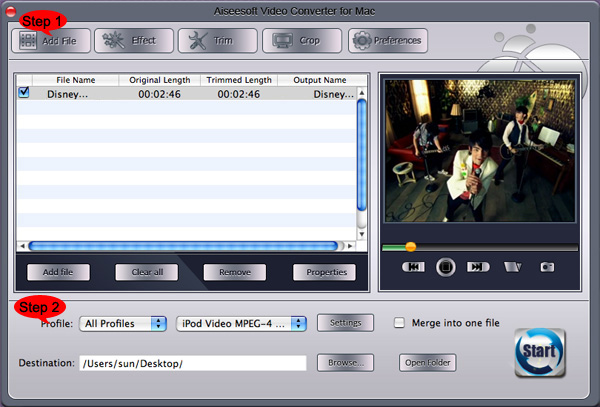
Step 1: Click the "Add File" button to load your video
Step 2: Select the output profile and output Video settions.
You can cut a clip of your video by using its "Trim" function
You can merge a few videos into one file by clicking "merge into one file"
You can crop the black edge of your video to adjust your video to your iPod screen to get the best view.

Then click the "Convert" button to sart the conversion.


Part Three: How to backup your ipod stuff on Mac?
Easy to solve this problem too.
AiseesoftiPod to Mac Transfercan copy your selected video, audio and image files to your Mac immediately without any loss
Ok, just few clicks, you will finish the work.
Step 0: You need download Aiseeosft iPod to Computer Transfer

Step 1: Plug your iPod to your Mac, and pick up what you want to backup
Step 2: Click “iPod to Mac” and find where to put your iPod info on your Mac and click “Open”
Few seconds later, your iPod songs will be on your Mac.

2011年10月7日星期五

Aiseesoft Updates All Mac Software to Support the Latest Mac OS X Lion

On Wednesday, Apple launched the Mac OS X Lion on the Mac App Store. The latest Mac OS X 10.7 brings customers many wonderful new features - full-screen apps, the mission control that brings together full-screen apps, Dashboard, Expose, and Spaces in one new feature, Launchpad, and some wonderful improved applications, such as Mail.

Since the Mac OS X Lion for developers was released about nine months ago, our software engineers have been studying this new Mac platform and testing the performance of our Mac software running on the OS X Lion. Now, with the launch of the new OS, all Aiseesoft Mac software could work perfectly on it and help you have a wonderful video/audio enjoyment experience. Here, we recommend you two Mac applications - Video Converter for Mac and Blu-ray Ripper for Mac. Both the two converters are star products of Aiseesoft.

Aiseesoft Video Converter for Mac is professional video converting software to assist users to convert all popular video and audio formats, such as AVI, MP4, MOV, MKV, WMV, DivX, XviD, MPEG-1/2, 3GP, VOB and HD video (TS, MTS, M2TS), etc., on Mac. And this Mac Video Converter supports numerous output formats. With it, you can enjoy any video on your portable devices, like PSP, iPad, iPhone, iPod, BlackBerry, Android phones, mobile phones, etc. This software can bring you the best output video quality.

Aiseesoft Blu-ray Ripper for Mac is a reliable Mac Blu-ray Converter, which owns the ability of ripping and converting any Blu-ray disc, DVD and video file to all popular video/audio formats. This software can help customers enjoy Blu-ray movies on portable devices that have no Blu-ray drive. Moreover, this Mac Blu-ray Ripper possesses powerful video editing features. For instance, you can trim video segment, crop video frame, watermark video, and join videos together, and so on.

System Requirements

OS Supported: Mac OS X v10.4 – v10.7

Hardware Requirements: 512MB RAM, Super VGA (800×600) resolution, 16-bit graphics card or higher.

2011年10月5日星期三

Updated iPad 2 Converter Suite - the Most Powerful APP for iPad Users

Apple is always the center of hot topics nowadays because it is constantly creating magic and fantastic products like iPhone, iPhone 4, iPad, and iPad 2, which is gaining in popularity because of its strong functions and convenience since it was released. The newly upgraded Aiseesoft iPad 2 Converter Suite is specially designed for iPad 2 users to manage video, audio or image files on iPad 2 much easier and more conveniently. Since more and more people prefer to use iPad, good iPad 2 converter software is becoming necessary in daily life.

Aiseesoft iPad 2 Converter Suite, composed of iPad 2 Video Converter, DVD to iPad 2 Converter and iPad 2 Transfer, possesses powerful functions to help users convert any video format including DVD to iPad 2 compatible formats in fast speed and high image/sound qualities. iPad 2 Video Converter allows users to convert any video format including MPG, MPEG, VOB, DAT, MP4, M4V, TS, RM, RMVB, WMV, ASF, MKV, AVI, etc. to iPad 2. By using the DVD to iPad 2 Converter, you can convert any type of DVD to iPad 2 easily and directly. The iPad 2 Transfer, the best iPad 2 Manager has the capabilities of transferring video, audio and image files between iPad 2 and computer without losing anything. In addition, all modes of iPod and iPhone are also supported by this software.

Key Features of iPad 2 Converter Suite

  1. Convert videos and DVDs to iPad 2 and extract audio from videos
  2. Convert one source to different video formats at one time.
  3. Transfer files between iPad 2 and computer with quick and auto searching function
  4. Customize output files through editing function. Users can merge, trim and crop videos, adjust video effects and add watermark to the videos according to their preference,
  5. Preview video effect and capture video frame.
  6. The newly adopted NVIDIA® CUDA™ and AMD APP acceleration technology makes it possible to complete the conversion and transfer process within a very short time.

To conclude, this iPad 2 Converter suite will absolutely provide you with the best and easiest way to help you manage your iPad 2 in order.

Price and Availability

Aiseesoft iPad 2 Converter Suite is now priced at $35.00

System Requirements

OS Supported: Windows NT4/2000/2003/XP and Windows Vista, Windows 7

Hardware Requirements: 800MHz Intel or AMD CPU, or above; 512MB RAM or more

2011年10月1日星期六

Aiseesoft Upgraded iPad Transfer

Aiseesoft upgraded iPad Transfer in order to provide users with more satisfying iPad assistant software. The professional iPad transferring software can meet almost all needs of iPad users, such as transferring all kinds of files, and converting Blu-ray/DVD/video files to iPad, etc.

Aiseesoft iPad Transfer can support many document types. It can help customers transfer music, movies, pictures, Camera Roll, voice memos, camera shot from iPad to computer. Also this software is able to import music, video, image files from computer to iPad.

This professional iPad Transfer can also act as the iPad converting software. It can convert Blu-ray (BD), DVD, and videos to iPad compatible video/audio formats. And the powerful video editing features allow users to trim video segment and convert it to iPad, crop video frame, add any watermark to video, adjust video effect, and so on. And this iPad Transfer has adopted the AMD APP and NVIDIA® CUDA™ GPU acceleration technology, which can bring much higher converting speed while converting files to iPad on computer with the CUDA-enabled or AMD APP-enables GPU.

Here simply introduce the operation steps to make it clearer for users:

Download the iPad Transfer software and install it. Next you need connect your iPad to computer via USB cable, and this software will identify your iPad and show the information automatically like Music, Movie, Playlists and Photos. For example, you want to transfer the music from your iPad to the computer. Firstly you click the “Music” list to check it. And then all music information will be showed on the center. You could select the pieces of music by checking the frame. At last click the “Export to Computer” button to transfer the files. It’s so easy.

If you want to convert Blu-ray and DVD movies to iPad, it’s OK. Insert your Blu-ray/DVD to the Blu-ray/DVD drive. Also connect your iPad to computer via USB cable. And this iPad Transfer will detect your device, and show the device information in the Content Panel. Then click the left "Rip Blu-ray/DVD" node to open the DVD/Blu-ray ripping window. Here click the "Load Blu-ray" or "Load DVD" button according to your need to load your Blu-ray/DVD source. Then all titles and chapters will be shown on the interface. Choose all titles or just some of them to convert. Would like to make your converted video more effective? It’s not difficult. Click "Edit" button. In the "Edit" window, you can cut off any video segment, crop video frame, watermark video, adjust video brightness/saturation/contrast/hue/volume, etc

All things are so easy and make your life so perfect.